

When you delete a photo or video on an iPhone, it isn't removed right away. It goes to the Recently Deleted album in the Photos app and stays there for up to 30 days before being automatically deleted.
This can be useful if you delete something by mistake, but it also means those files can continue to take up storage until they're permanently removed. If you're trying to free up space now, or simply don't want certain photos sitting on your iPhone for the next 30 days, you can clear the Recently Deleted album manually.
Below, we'll show you how to permanently delete recently deleted photos and videos on iPhone, including the steps for iOS 18, iOS 17, and earlier versions, plus what to check if you use iCloud Photos.
Method 1: Delete Recently Deleted Photos in the Photos App
The easiest way to permanently remove recently deleted photos and videos is to clear them from the Recently Deleted album in the Photos app. The location of this album is different on iOS 18 because of the redesigned Photos interface, while iOS 17 and earlier versions keep it under the Albums tab.
Before you delete anything, make sure you no longer need the selected photos or videos. Once an item is removed from Recently Deleted, it is permanently deleted and can no longer be recovered from the Photos app. If you use iCloud Photos, the deletion also syncs to your other Apple devices that use the same Apple Account with iCloud Photos turned on.
For iOS 18 Users
In iOS 18, you can find Recently Deleted under Utilities rather than in the Albums tab.
- Open the Photos app and scroll down through the main Photos view until you reach the Utilities section.
- Tap Recently Deleted. You'll need to authenticate with Face ID, Touch ID, or your iPhone passcode before the album opens.
- Tap Select in the upper-right corner. Select the individual photos and videos you want to remove, or select everything if you want to empty the album.
- To permanently delete all items, tap the More button (the three-dot icon) and choose Delete All. If you selected specific items, tap Delete instead.
- Review the selection and confirm the deletion when prompted. The selected items will be permanently removed rather than remaining in Recently Deleted until the 30-day period ends.
For iOS 17, iOS 16, and Earlier
On older versions of iOS, Recently Deleted is located inside the Albums section.
- Open the Photos app and tap Albums at the bottom of the screen.
- Scroll down to the Utilities section, then tap Recently Deleted. Authenticate with Face ID, Touch ID, or your passcode to access the album.
- Tap Select in the upper-right corner and choose the photos or videos you want to permanently remove.
- If you want to empty the entire album, tap Delete All. Otherwise, select the individual items and tap Delete.
- When prompted, confirm by tapping Delete from This iPhone. The selected photos and videos will then be permanently deleted.
Method 2: Delete Recently Deleted Photos via iPhone Settings
If you're checking your iPhone's storage anyway, you can also manage Recently Deleted from the iPhone Storage settings. This route is useful when your main goal is to free up space, because you can see how much storage Photos is using before deciding what to remove.
The exact options can vary slightly by iOS version, so don't worry if you don't see a separate Recently Deleted recommendation on your iPhone. If the option is available, here's how to use it:
- Open Settings on your iPhone and tap General.
- Select iPhone Storage and wait a few seconds for iOS to calculate your storage usage. Depending on how much content is stored on your device, this may take a little time.
- Scroll through the list of apps and tap Photos to open its storage details.
- Look for the Recently Deleted section or recommendation. If iOS shows an Empty option next to it, tap it to remove the items currently stored there.
- Review the warning and confirm the action. The photos and videos in Recently Deleted will be permanently deleted rather than waiting for iOS to remove them automatically.

A Useful Check Before You Empty It
If you're clearing Recently Deleted specifically to make room on your iPhone, note the amount of storage used before and after the cleanup. Go back to Settings > General > iPhone Storage and give iOS some time to recalculate the numbers.
Don't expect the available storage to increase by exactly the size of the photos you deleted. iPhone storage is also affected by cached files, apps, system data, and, if you use iCloud Photos, the way your photos are stored locally. The storage screen is therefore a better way to verify the actual change than estimating it from the size of the deleted photos alone.
Method 3: Permanently Delete Photos from iCloud.com
If you use iCloud Photos, you can also permanently remove photos and videos from iCloud.com instead of doing it from your iPhone. This can be convenient when you're already working on a computer, or when you want to manage a large photo library from a larger screen.
- Open a web browser on your computer or iPad and go to iCloud.com.
- Sign in with the Apple Account you use for iCloud Photos. Apple now uses the term Apple Account instead of Apple ID, although you may still see Apple ID in older instructions or interfaces.
- Open Photos from the iCloud.com home page.
- Find and open Recently Deleted. Depending on the current iCloud.com interface, you may need to look under the Photos sidebar or other collection options to access it.
- Select the photos or videos you want to remove. If you want to clear the entire album, choose Delete All when that option is available.
- Confirm the deletion when prompted. The selected items will be permanently removed from your iCloud Photos library rather than remaining in Recently Deleted until they expire automatically.

Keep in Mind
Deleting photos from Recently Deleted on iCloud.com is not a separate copy of the deletion. If iCloud Photos is turned on, your photo library stays synchronized across your Apple devices using the same Apple Account. A photo permanently deleted from iCloud Photos will therefore no longer be available in that synchronized library on your other devices.
Also, don't assume that permanently deleting an item from iCloud Photos will immediately free the same amount of local iPhone storage. If your iPhone uses Optimize iPhone Storage, only some of your full-resolution photos may be stored locally in the first place. To check the actual change in device storage, use Settings > General > iPhone Storage on the iPhone.
Method 4: Batch Delete iPhone Recently Deleted Photos via Desktop
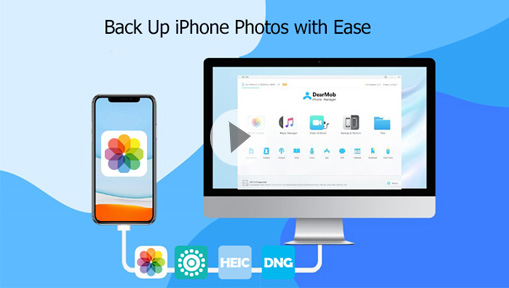
If you have hundreds or thousands of photos stuck in the Recently Deleted album, batch deleting them directly on your iPhone can sometimes cause the Photos app to freeze or crash. Using a dedicated desktop tool like DearMob iPhone Manager provides a faster, safer, and more stable way to manage photo libraries and clear stubborn photos from your device.

How to Clear Recently Deleted Album using DearMob iPhone Manager
- Download and install DearMob iPhone Manager on your PC or Mac.
- Connect your iPhone to your computer using a USB cable.
- Select Trust This Computer on your iPhone screen when prompted.
- Launch the program and go to Photo Transfer from the main interface.
- Find the Recently Deleted folder from the left menu bar.
- Select the photos you want to erase (or select all).
- Click Delete, then hit Sync to permanently empty the Recently Deleted folder on your iPhone.

Why Choose a Desktop Manager?
- No Freezing: Handles bulk deletions of large media files without slowing down your iPhone.
- Backup Before Wipe: Option to back up photos to your computer before permanently deleting them, preventing accidental data loss.
Troubleshooting: What to Do If Recently Deleted Photos Won't Delete
If photos remain in Recently Deleted after you confirm permanent deletion, or your iPhone storage doesn't change as expected, try these fixes before repeating the deletion.
1. Restart Your iPhone
If the Photos app or storage information hasn't updated correctly, restart your iPhone and check Photos > Recently Deleted again. This can refresh the Photos app and other system processes involved in displaying your library and storage information.
2. Check Your iCloud Photos Sync Status
If you use iCloud Photos, make sure your iPhone has a stable internet connection and that photo syncing has finished. Open the Photos app and check whether syncing is paused or incomplete. Allow it to finish before trying to delete the items again.
3. Don't Turn Off iCloud Photos Too Quickly
If deleted photos keep reappearing, check your iCloud Photos settings under Settings > [your name] > iCloud > Photos. Avoid turning off iCloud Photos as the first fix. If you do disable it, read the options shown by iOS carefully, as you may be asked to download photos and videos to your iPhone first.
4. Check iPhone Storage Separately
If Recently Deleted is empty but your available storage hasn't increased, the deletion may have worked. Go to Settings > General > iPhone Storage and check again after a few minutes. If Optimize iPhone Storage is enabled, the amount of local storage freed may not match the original size of the deleted photos.
If the problem persists after restarting and allowing iCloud Photos to sync, make sure your iPhone is running the latest available iOS version and try again.
Frequently Asked Questions (FAQs)
1. Can I recover photos after permanently deleting them from Recently Deleted?
Not from the Photos app. Once you permanently delete a photo or video from Recently Deleted, Apple no longer provides a way to restore it from that album. If you have a backup that contains the deleted files, however, you may still be able to recover them from that backup, depending on how and when the backup was created.
2. Why are deleted photos still taking up storage space on my iPhone?
First, check whether the photos have actually disappeared from Recently Deleted. If they are gone but the storage number hasn't changed, give iOS some time to recalculate the storage information and then check Settings > General > iPhone Storage again. The amount of space recovered can also vary depending on how your photos are stored locally, especially when Optimize iPhone Storage is enabled.
3. Do photos automatically delete from Recently Deleted?
Yes. Photos and videos remain in Recently Deleted for 30 days after deletion and are then automatically and permanently deleted. You can manually remove them sooner if you don't want to wait.
Conclusion
If you want to permanently remove photos that are already in Recently Deleted, you have several options. The Photos app is the most straightforward choice for deleting items directly on your iPhone, while iPhone Storage provides another way to manage them when you're checking device space. If you use iCloud Photos, you can also clear Recently Deleted from iCloud.com on a computer or iPad.
For a large photo library, DearMob iPhone Manager provides a desktop-based way to manage and batch-delete iPhone photos. This can be more convenient when you prefer working with your iPhone content from a larger screen rather than selecting files one by one on the device.
Whichever method you choose, make sure you no longer need the photos before permanently deleting them. Once items are removed from Recently Deleted, they can no longer be restored from the Photos app.